
 Rawebs
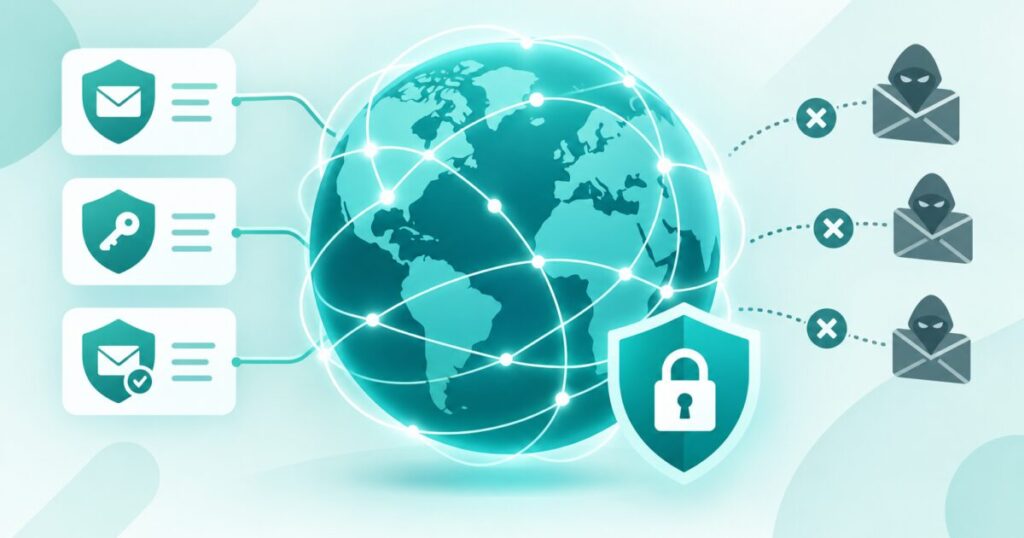
If you’ve ever had a customer call to ask “did you really send me this?”, there’s a good chance someone was spoofing your domain — sending email that looks like it came from you, without ever touching your actual mailbox. It’s a surprisingly common trick, and it works because, by default, email has no built-in way to prove who really sent a message.
The fix is a trio of DNS records most business owners have never heard of: SPF, DKIM and DMARC. None of them require any coding, and all three live quietly in your domain’s DNS settings. Here’s what each one does, why you need all three together, and how to set them up without accidentally breaking your own email in the process.
What Email Spoofing Actually Looks Like
Spoofing doesn’t mean someone has hacked your email account. Instead, a scammer simply types your domain into the “From” field of an email they send from their own server. Unless your domain actively tells the receiving mail server “only these servers are allowed to send mail as me”, that forged message can sail straight into your customer’s or supplier’s inbox looking entirely genuine — often used to request fake payments, push malware links, or phish for login details using your good name as cover.
This isn’t just a technical headache. A convincing scam email sent “from” your business can cost a customer money, and it can cost you trust that took years to build.
SPF: Listing Who’s Allowed to Send Your Mail
SPF (Sender Policy Framework) is a single DNS text record that lists the mail servers permitted to send email on behalf of your domain — typically your hosting provider’s mail servers, plus anything else you use for email, such as a marketing platform or invoicing tool. When a receiving server gets a message claiming to be from your domain, it checks the sending server against your SPF record. If the sender isn’t on the list, the message fails the check.
The common mistake here is forgetting to include every legitimate service you send email through. If you add a new newsletter tool or booking system later and forget to update your SPF record, your own genuine emails can start failing checks too — so it’s worth reviewing this record whenever you add a new sending service.
DKIM: Signing Every Message You Send
DKIM (DomainKeys Identified Mail) works differently. Rather than listing approved servers, it attaches a digital signature to each outgoing email, generated using a private key that only your mail server holds. The receiving server looks up a matching public key in your DNS and checks the signature. If it matches, the receiving server knows two things: the message really did come from a server you authorised, and nothing in it was altered in transit.
Most hosting control panels, including cPanel, will generate your DKIM key and the DNS record for it automatically — you just need to make sure it’s switched on for each domain you send email from.
DMARC: Setting the Rules and Getting the Reports
SPF and DKIM check authenticity, but on their own they don’t tell a receiving server what to actually do when a message fails. That’s DMARC’s job. A DMARC record tells other mail servers how strictly to treat messages that fail SPF or DKIM checks — ignore it, quarantine it as spam, or reject it outright — and, usefully, gives you an address to receive regular reports showing exactly who is sending email using your domain, including any spoofing attempts.
Most businesses start with a monitoring-only DMARC policy to see what’s happening without risking genuine mail being blocked, then tighten it to quarantine or reject once they’re confident every legitimate sender is properly authenticated.
Getting It Right Without Breaking Your Own Email
The real risk with all three records isn’t setting them up — it’s setting them up incompletely and then tightening DMARC too soon, which can cause genuine emails from forgotten sending services to start bouncing or landing in spam. The safe order is: set up SPF and DKIM for every service that sends mail on your behalf, add a DMARC record in monitoring mode, read the reports for a few weeks, and only then move to a stricter enforcement policy.
If you’re not sure which services are currently sending email as your domain, that’s exactly what the DMARC reports will show you.
Getting these DNS records right starts with having proper access to manage your domain’s DNS in the first place. If you’re still juggling an old registrar login or unsure where your domain’s DNS is actually managed, our domain name management tools make it straightforward to see and edit every record in one place. And if you’d rather have someone check your SPF, DKIM and DMARC setup for you, get in touch and we’ll take a look.